
Every installer is scanned by the developer on VirusTotal.com before being published. The SHA-256 hash displayed on the download page links directly to the dedicated VirusTotal report for that specific setup file.
If you see 1 or 2 detections out of 70+ antivirus engines, this is a false positive. The installer is digitally signed with a code-signing certificate, but some AI-based engines (e.g. DeepInstinct) can still occasionally flag newer software with a limited install base, unrelated to whether it's signed. You are free to rescan the file yourself at any time — the results will be the same.
The application is open about what it does — there is nothing hidden. The installer, the licensing mechanism, and all server communication are transparent. If this were actually malicious software, it certainly would not be published openly with a public VirusTotal report, a public website, and a real identity behind it.
The installer available for download on this website is always the initial release of the current major version (e.g. v3.0.0). All subsequent updates (e.g. v3.0.1, v3.0.2 …) are distributed exclusively through the built-in update service inside the application — there are no direct download links for update packages on the website.
Every update is scanned by the developer on VirusTotal before being published, and a direct link to the dedicated VirusTotal report for each version is available in the Version History section.
Before you install
YEM Content Explorer is distributed as a standard Windows installer (.exe), digitally
signed with a code-signing certificate. Even signed software can occasionally still trigger a Windows
SmartScreen warning until the certificate builds up enough reputation with Microsoft — if you see one,
this is expected behaviour, not a sign of a problem. Follow the steps below to complete the installation
successfully.
Why might Windows still show a warning?
SmartScreen reputation builds up gradually as more people run a piece of software, even when it's
properly signed — a newer certificate can occasionally still trigger a warning in the meantime.
This does not mean the file is harmful. You are always free to decide whether you
trust the software.
Download the installer
Click the download button on software's page. Your browser may ask you to confirm the download — click Keep or Save if prompted.
Some browsers (e.g. Chrome, Edge) may show a banner at the bottom of the window saying "YEM-CE-Setup-x.x.x.exe was blocked". If this happens:
-
aClick the three-dot menu (⋯) next to the blocked file in the download bar.
-
bSelect "Keep" or "Keep anyway".
-
cThe file will be saved to your Downloads folder.
Windows SmartScreen warning
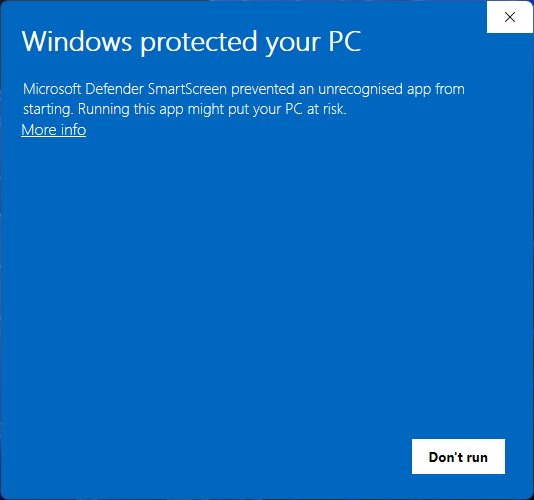
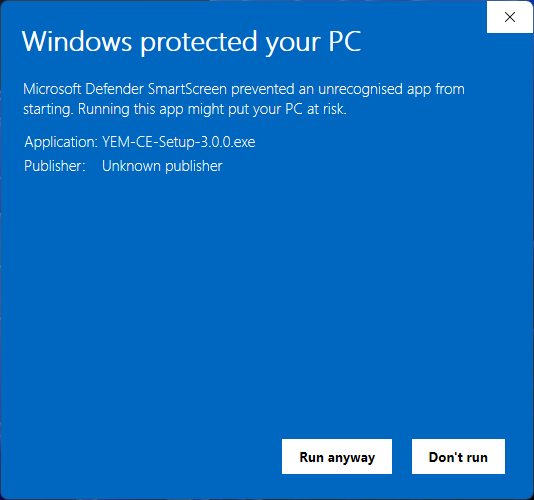
When you double-click the installer, Windows SmartScreen may occasionally still display a blue dialog that says "Windows protected your PC", even though the installer is signed. Here is how to proceed if you see it:
-
1Click "More info" (the text link, not "Don't run").
-
2The dialog expands and shows the app name and publisher. A new button "Run anyway" appears at the bottom.
-
3Click "Run anyway" to launch the installer.
If you do not see the SmartScreen dialog, Windows has already trusted the file and the installer launches directly — no further action needed.
User Account Control (UAC) prompt
Windows will ask for administrator permission to run the installer. This is required because
the setup writes files to Program Files and creates Start Menu shortcuts.
-
1A dialog titled "Do you want to allow this app to make changes to your device?" will appear.
-
2Click "Yes" to continue. If you click "No", the installation will be cancelled.
If your Windows account does not have administrator rights, ask someone with admin access to run the installer, or right-click the file and choose "Run as administrator".
Follow the installation wizard
The standard setup wizard will guide you through the remaining steps:
- 1Choose the installation folder (default:
C:\Program Files\YEM-CE). - 2Optionally create a Desktop shortcut.
- 3Click "Install" and wait for the files to be copied.
- 4Click "Finish". You can optionally launch the app immediately from the wizard.
First launch — Windows Defender scan
The first time you run YEM-CE.exe, Windows Defender may briefly scan the executable. This usually takes a few seconds and happens automatically in the background.
In rare cases, Defender may quarantine the file and show a notification. If this happens:
-
1Open Windows Security → Virus & threat protection → Protection history.
-
2Find the entry for YEM-CE.exe and click "Actions" → "Allow on device".
-
3Launch the application again from the Start Menu or Desktop shortcut.
After the first successful launch, Windows remembers the file and will not scan or block it again on subsequent runs.
If you have made a payment that can be confirmed via your PayPal receipt — or by verifying the transaction in the author's PayPal account — your license will be activated manually, free of charge. The application includes a built-in Manual Recovery option in the License screen that is designed exactly for this situation.
If this happens to you: try connecting through a VPN, or check your router's settings for a "Parental Control" / "URL Filter" / "Access Control" section that might be filtering this connection. If it keeps happening after that, contact: contactme@valimaties.ro
Video tutorials & demos
Watch video demonstrations and tutorials for YEM Content Explorer on the official YouTube channel:
@ValiMaties-Developer